Aug 25

How to make your iPhone ringtone from any video/audio files

How to make your iPhone ringtone from any video/audio files

Now create your own iPhone ringtone from your favorite music or video without ever buying from iTunes Store! Virtually all video/audio formats are supported – AVI, MPEG, WMV, DivX, MP4, H.264/AVC, AVCHD, MKV, RM, MOV, XviD, and 3GP plus audios like MP3, WMA, AAC, WAV, RA, M4A, and AC3. With the smart iPhone ringtone maker, you can even transfer the converted file directly to your iPhone without going through iTunes.

The guide will explain how to easily make your iPhone ringtone from any video/audio files.
Firstly, download, install and launch the iPhone Ringtone Maker.

Step 1: Load a video/audio file

Click the “Browse” button right beside “Input File” label to select the file you want to create ringtone in the dialog that pops up, then click “OK” button to load the file into the “Input File” textbox.

Step 2: Adjust the output settings

Enter the name in the “Output File Name” textbox or keep the original name, and click “Browse” button on the right side of the “Output Folder” to choose a folder for saving the outputted ringtones.

Tips: After making ringtone, you can click “Open” button to view the ringtone directly.

Step 3: Customize the ringtone (optional)

1. Extract a clip

Click “Play” button to listen the music and find the part you want. Drag and drop the start & end sliders to get a music clip, or click “Set Start Point” and “Set End Point” buttons to extract a clip when the player comes to the points you want, or type the start & end time directly in the corresponding text boxes.

2. Add fade-in and fade-out effects

Check the “Fade in” and “Fade out” checkboxes, and set the fade-in and fade-out time according to your need.

3. Adjust ringtone volume

Drag the volume slider to set the ringtone volume freely.

Step 4: Adjust the file transfer settings
If you want, check “Add to iTunes” and “Add to iPhone” options to let the program upload the ringtone to iTunes and your iPhone directly after conversion.

Click “Ringtone Manager” button to manage all the ringtones you uploaded to iPhone in the “Ringtone Manager” dialog that opens.

Step 5: Start making ringtone

After all above are finished, click “Start converting” button to start to make your own iPhone ringtone. You can check the converting process from the progress bar at the bottom. Just in a few minutes, you make your own iPhone ringtone from the loved music.
Aug 25

iPhone 3G / 3GS Glass Digitizer Replacement Repair HD Tutorial DIY Complete

bit.ly If you have dropped your iPhone 3G and have broken the glass this Video is for you. Buy the tools and glass from iphoneshopusa.com This is a complete tutorial on to replace the glass and digitizer on your iPhone 3G. There are a couple of tips and tricks on how to remove the broken glass from the plastic bracket. This is a fairly easy process but does take some time and patience. If you feel you can not complete this process yourself after watching this video, drop me a message and I would be happy to assist you.

Aug 25

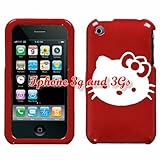
APPLE IPHONE 3G/3GS HELLO KITTY WHITE FACE ON A RED HARD CASE COVER

APPLE IPHONE 3G/3GS HELLO KITTY WHITE FACE ON A RED HARD CASE COVER

  • IPHONE 3G/3GS HELLO KITTY CASE COVER

This case specifically fits ONLY for the APPLE IPHONE 3G/3GS. This case CANNOT fit any other APPLE PRODUCT or other models. Please double check this is your phone before you purchase this case. Protect your wireless device with our premium cases. This case provides protection by preventing the device from dust and unnecessary scratches. It is made to fit perfect and gives the device its maximum protection. The hard plastic with a layer of rubberized texture is reinforced from the front edges, si

Price: $ 9.99

Aug 25

How much is the iphone 4g going to be if you dont have an upgrade available?

Question by Joey: How much is the iphone 4g going to be if you dont have an upgrade available?
I have had At&t since december of last year and I have an iphone 3g.. How much is the 4g going to be without the upgrade?

Best answer:

Answer by Wicked Witch’s Honor!
200 for a 16 gig and 400 for a 32 i believe.

What do you think? Answer below!

Aug 25

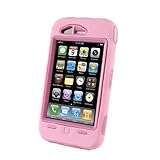
OtterBox Defender Case for iPhone 3G (Pink)

OtterBox Defender Case for iPhone 3G (Pink)

  • Ruggedized protective case in pink–fully compatible with the iPhone 3G and iPhone 3GS
  • High-impact polycarbonate shell with thermal formed protective clear membrane to safeguard screen
  • Open access to sync/charge and headphone jacks; use of all buttons accessible through case
  • 10700200
  • 10700220

PINK OTTERBOX DEFENDER SERIES SHIELD FOR THE APPLE IPHONE 3G, INCLUDES A HOLSTER STYLE SWIVEL BELT CLIPProtect your technology investment when your budget is already tight with the ruggedized OtterBox Defender case for iPhone 3G and iPhone 3GS. The Defender series offers a fully interactive case that enables complete usability of the iPhone’s touchscreen and access to all buttons. And you can sync and charge your iPhone right through the case. This Defender case also comes with an OtterBox ClipS

Rating: (out of 449 reviews)

List Price: $ 49.95

Price: Too low to display

Aug 25

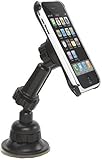
Remanufactured Griffin Technology 10021-IPWNDSTB WindowSeat Windshield Mount for iPod Touch and iPhone

Remanufactured Griffin Technology 10021-IPWNDSTB WindowSeat Windshield Mount for iPod Touch and iPhone

  • Compatible with Apple iPod touch 1G and 2G and iPhone 1G, 3G and 3GS with an easy fit
  • Adjustable mounting bracket securely places your device at eye level on your car’s windshield or dashboard for safe
  • Quick and secure viewing angle adjustments with the swiveling ball-and-socket joint;
  • High-grip silicone suction pad attaches to your window easily and does not move; Accommodates recharging with Griffin’s PowerJolt auto charger
  • Includes remanufactured WindowSeat Windshield Mount, clips, auxillary cable and owner’s manual

The Griffin Technology 10021-IPWNDSTB WindowSeat Windshield Mount for iPod Touch and iPhone places your iPod or iPhone at eye level on your car’s windshield or dashboard, so you have safe and easy access to street maps and directions. It also accommodates recharging with the optional Griffin PowerJolt auto charger (sold separately).

Rating: (out of 4 reviews)

List Price: $ 31.99

Price: $ 15.99

Aug 25

Apple IPhone Tips: 5 More Tips to Better Efficiency

Apple IPhone Tips: 5 More Tips to Better Efficiency

Are you really making the best use of your spanking new iPhone? You did buy it because of all the new features that you can take advantage of right? Well, are you making use of everything? Here is another list of 10 quick tips you can use to make better use of your iPhone. Using these tips will make your iPhone your friend, and allow you to improve your efficiency and get faster at taking full advantage of your cool new gadget. Let’s get started.


1. Share your URLs


Let’s say you are surfing the web and you come across something that you really want to share with your friends. Instead of copying and pasting the URL into an e-mail you just have to create, tap the Address Bar, then tap Share. A new e-mail message, containing the URL, will open in Mail; just choose a recipient(s), add any comments you want to include, and tap Send.


2. Pick where you listen to voicemail


If you’ve got a Bluetooth headset, incoming calls get routed there automatically-not so when you call up Visual Voicemail. However, an Audio button on the Visual Voicemail screen lets you set where you listen to your message: the handset, the built-in speaker, or a Bluetooth headset. Your iPhone can differentiate between the different settings. As with the iPod, the iPhone lets you set the speed of audiobook playback.


3. Find another way to scroll through Contacts


Everyone knows that you can scroll through the Contacts list on your iPhone two different ways-either flick your finger on the list to scroll up or down, or tap on one of the letters on the alphabet running down the right side of the screen to jump to contacts beginning with that letter. But there is a third way: hold your finger on the alphabetical list and then slide up and down-you’ll be able to scroll through your Contacts in a more controlled manner than by flicking your finger. The flicking finger method can get tiring after a while because it is less accurate.


4. Scroll through separate boxes on a Web page


If you encounter a scrolling box or list when surfing Safari on your iPhone-say you’re responding to a post at the Macworld forums -and try to scroll using your finger, you’ll find that the entire page scrolls, instead of just the box. The trick is to zoom in and scroll such areas with two fingers. Basically what is happening is when you are on a full-page your iPhone doesn’t know what you are trying to do. By zooming in your iPhone will recognize the box within the page.


5. Save time in driving directions


One of the primary uses for the iPhone’s Map application is to get driving directions. Both the starting point and destination fields offer the Bookmarks button, so you can quickly use a bookmark, recent location, or contact when searching for directions. The first thing you should do in Maps is find your own address and then bookmark it-this will make finding directions to and from locations as easy as tapping your home bookmark. It is a good idea to bookmark all of your frequent destinations as they will all eventually become points of origin.


So what are you waiting for? Get started now and squeeze every bit out of your iPhone.

Don’t like being forced to use one service provider? Visit 3gphoneshop.com for unlocked jailbroken iPhones. We offer large selection including unlocked 8gb Apple iPhonesor Unlocked 16gb iPhones.

Aug 25

iPhone update 4.0.2 is a major #fail. Still trying to restore and it’s 2 am. Spent $3000 at #Apple stores this week and this is what I get?

iPhone update 4.0.2 is a major #fail. Still trying to restore and it's 2 am. Spent 00 at #Apple stores this week and this is what I get? – by tweefer (Thomas Aquinas)