Oct 30

How To Convert AVI To MP4 on Mac

How To Convert AVI To MP4 on Mac

Converting an AVI file to MP4 format on mac can be really hard. This is because Mac doesn’t support converting file’s formats as its standard feature and to do the conversion, you need to use other standalone software products.

AVI format is the most popular format for Windows Users while MP4 is the primary format for Macintosh users. To convert avi files to mp4 on Mac, you’ll need to use a Video Converter software for mac and there is no other alternative to this.

I’m outlining the basic steps you need to follow to convert avi to mp4 on Mac :-

1. First of all, you’ll need to download a Video Converter For Mac

2. After downloading, you need to install the software in your system.

3. Now, you need to click on “Add Files” button to add AVI files you want to convert to mp4 format in the program. This software supports batch conversion feature so it allows you to import many files at a time so that you can convert them simultaneously.

4. After adding avi files to software, you need to select the destination format. You can convert these avi files to any popular video format for your iPod, iPhone, PSP, PS3, Cell Phone, Apple TV, Zune, Creative Zen, MP4 players and more. Since, in this tutorial, we are converting avi to mp4 on Mac, please select “MP4 Format” as destination format.

5.  Now you need to select the folder where you want to save converted files. You can specify the output folder in “Output” edit box and select your desired folder by clicking on ‘Browse’ button.

6. Now you are ready to convert the files. If you want to combine all avi files into a single mp4 file, this feature is also supported. You just need to check “Merge into one file” option.

7. Click on “Convert” button to start the conversion and the software will show you real time progress bar. Once the conversion is done, you can find the converted files in output folder in MP4 format and that’s it!

Now you can use these MP4 files anywhere on your Mac and this will work perfectly. Not only you can convert avi to mp4 format on Mac but there are lots and lots of other formats supported. You can convert between lots of formats.

You can use this powerful Mac Video Converter to convert your video files on Mac in any format you want. Conversion between various formats is seamless and always retains original quality of the video!
Oct 30

Google Brings Interactive Video Ads to Android

Google Brings Interactive Video Ads to Android
Google has released a new Android SDK for publishers, making AdMob interactive video and interstitial ad units available on the Android platform. AdMob , the Google-owned mobile ad network, has been offering interactive video ads on iPhone since late…
Read more on Mashable

Sencha Animator Debuts: Create Powerful CSS3 Animations for Web Browsers and Mobile Devices
Sencha Animator, the CSS3 alternative to Flash, helps interactive designers create rich animations for deployment on web browsers and devices, without relying on third-party media plug-ins
Read more on PRWeb via Yahoo! News

Adobe AIR 2.5 converts apps for iPhone, tablets, TVs
Adobe today stepped up development of its non-computer Flash plans by launching AIR 2.5. The app for creating non-browser Flash apps can now package them for Android and iPhone devices but also tablets, including the iPad and the upcoming BlackBerry PlayBook. Google TV support isn’t yet built in, but AIR can build apps for Samsung’s SmartTV platform….
Read more on MacNN

Oct 30

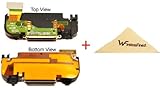
Apple iPhone 3g Charger Port Dock Flex Cable + Mic Microphone + Buzzer Ringer or Loud Speaker + Antenna Sticker PRE-INSTALLED ASSEMBLED + WirelessFinest MicroFiber Cleaning Cloth

Apple iPhone 3g Charger Port Dock Flex Cable + Mic Microphone + Buzzer Ringer or Loud Speaker + Antenna Sticker PRE-INSTALLED ASSEMBLED + WirelessFinest MicroFiber Cleaning Cloth

  • Pre-assembled dock charger flex + mic + speaker + antenna.
  • Oem Repair / Replacement parts.
  • All parts assembled and tested for your convenient.
  • MicroFiber cleaning cloth will be useful to keep the dust away.

Pre-assembled KIT, including the dock USB charger connector port with flex cable + Mic + Buzzer Ringer or Loud Speaker + Antenna sticker, all OEM parts pre-installed, this whole kit go into the back housing below the main board and battery. You will need to open up the phone, remove the two screws at the dock charger ports, take out the whole old kit, then just drop this new kit back in, put back screws and the replacement work for any of this part is done.

Compatible: Apple iPhone 3G 8

Rating: (out of 2 reviews)

List Price: $ 39.95

Price: $ 7.99

Oct 30

how can i remove ads from textfree (iphone) 10 points!?

Question by Matt S13: how can i remove ads from textfree (iphone) 10 points!?
Hi i would like to remove the ads in the application ‘TextFree’ my iphone is jailbroken and right now i dont have the money on itunes to remove the ads so my question is there a cracked version of the app or if you could simply tell me how to change the app like in iFile to remove them, thanks

Best answer:

Answer by desirae robledo
I googled the similar question a few days before. during the process of attempting to search the solution I found a way to get a free iOS4 from theiphone4portal.tk!! the phone arrived in 3 days and it’s going to be great!!

Good luck to ya

Give your answer to this question below!

Oct 30

DIY: Shure Sound Isolating Earphone + iPhone 4 Earphone

DIY: Shure Sound Isolating Earphone + iPhone 4 Earphone
Iphone
Image by Yutaka Tsutano
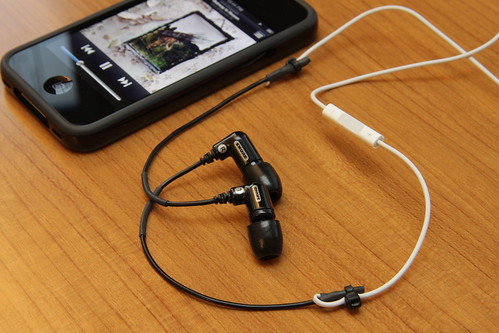
The earphones included with iPhone 4 is nice because of its microphone and controller. However, the sound quality is poor. It’s just not good enough for listening music.

I happend have Shure Sound Isolating Earphone with bad wires. So I decided to put them together.

Notice that the cable length is extended unlike other modifications that just swap the units. This is because the proper way for wearing the Shure earphones is to wrap the earphone cord over the top and down the back of the ear.

With this DIY, I just saved hundreds of dollars 🙂

日本版のLifehackerでも紹介されてみたいなので、一応警告しておきます。

この改造は記事で書かれているほど簡単ではありません。記事上の手順も記者が想像で書いた物で、間違っています。

ケーブル同士の接続には、少なくともハンダ付けをして、エレクトリックテープではなく熱収縮チューブを使うべきです。さらに強度を補強するために、Zip Tieなどで力が接点に直接かからないようにする必要があります。

Shure側のケーブルは簡単に加工できますが、iPhone側のケーブルは細くてエナメルコーティングがされているので扱うのが非常に難しいです。

あと、名前、タツノユタカじゃないよ :-p

Oct 30

iPad as a Carputer

iPad as a Carputer
Ipad
Image by Yutaka Tsutano
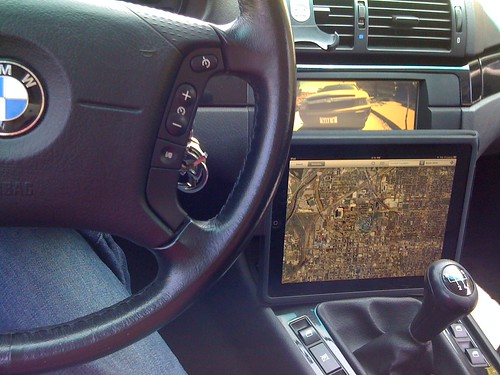
iPad’s connector is identical to the iPhone’s, so iPad works fine (except it doesn’t charge when iPad is running due to the higher current requirement). It means that I can control iPad using the steering wheel buttons.

I’m using MacBook Pro for a carputer with a touch screen, but it can be replaced with iPad which consumes a lot less energy and is a lot cheaper. All I need is an iPad mount on the dashboard.